> ## Documentation Index
> Fetch the complete documentation index at: https://swapnice.mintlify.site/llms.txt
> Use this file to discover all available pages before exploring further.
# Transactions
> Secure and Transparent Transactions
09/02/24
### What are Transactions?
Using funds from their swap wallet each user can exchange items with other users.
### Transactions
Since each user will have a single swap wallet the wallet will accurately reflect any changes they observe with their swap wallet funds. Each transaction will also need to have information about precisely when it occurred and where the funds came from.
### How Do I Create a Transaction?
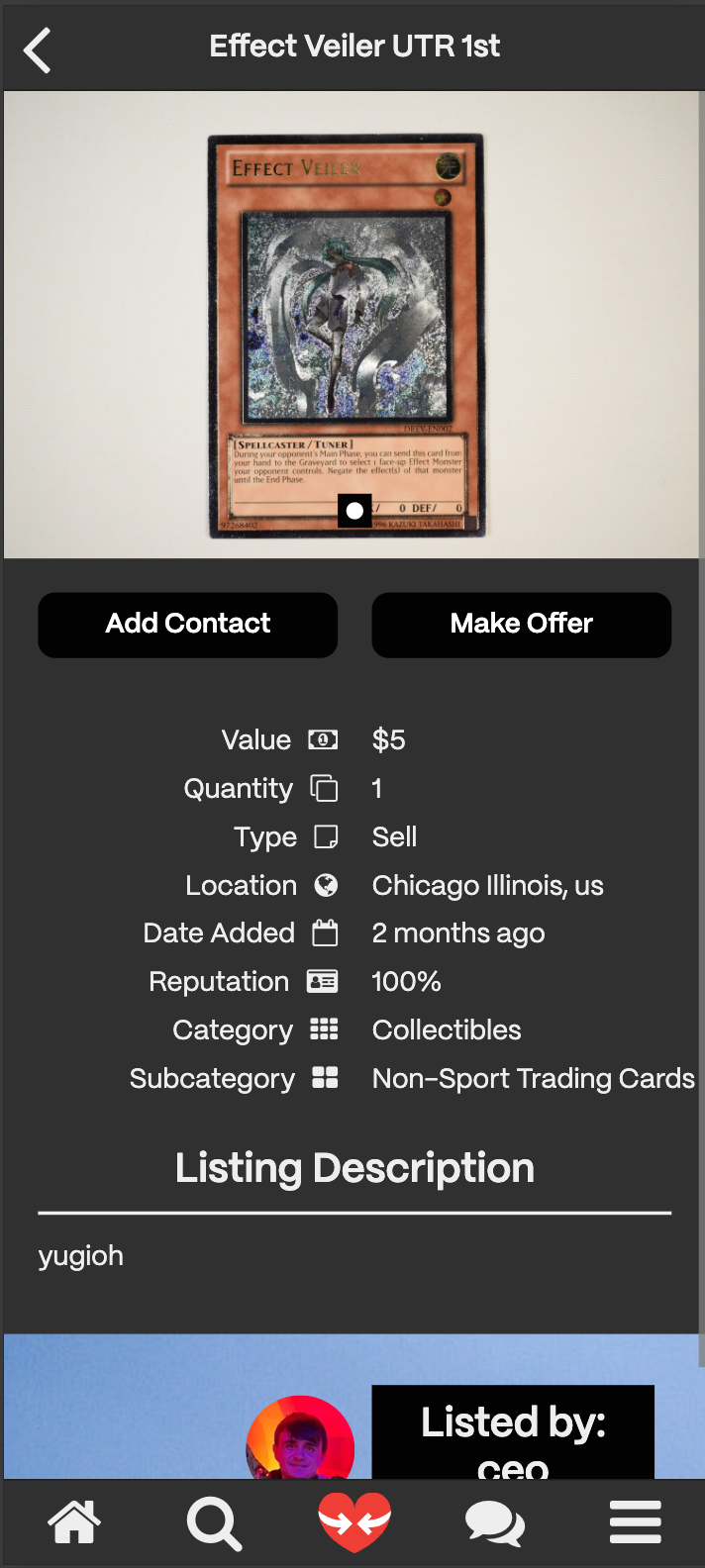
1. Find a [**Listing**](../swapnice-features/listings) you are interested in.
2. Click on the **"Make Offer"** button.
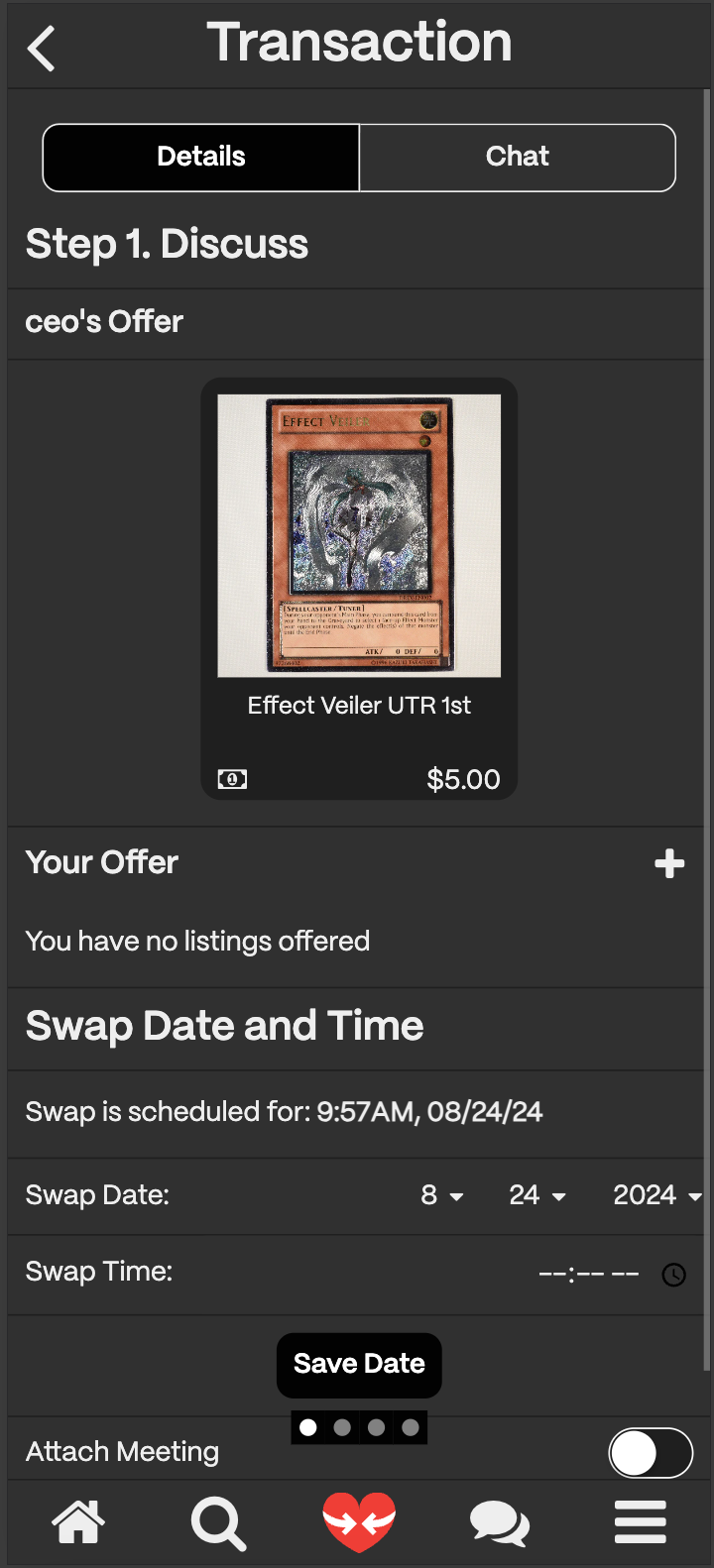
3. This launches the transaction page where you can make an offer.
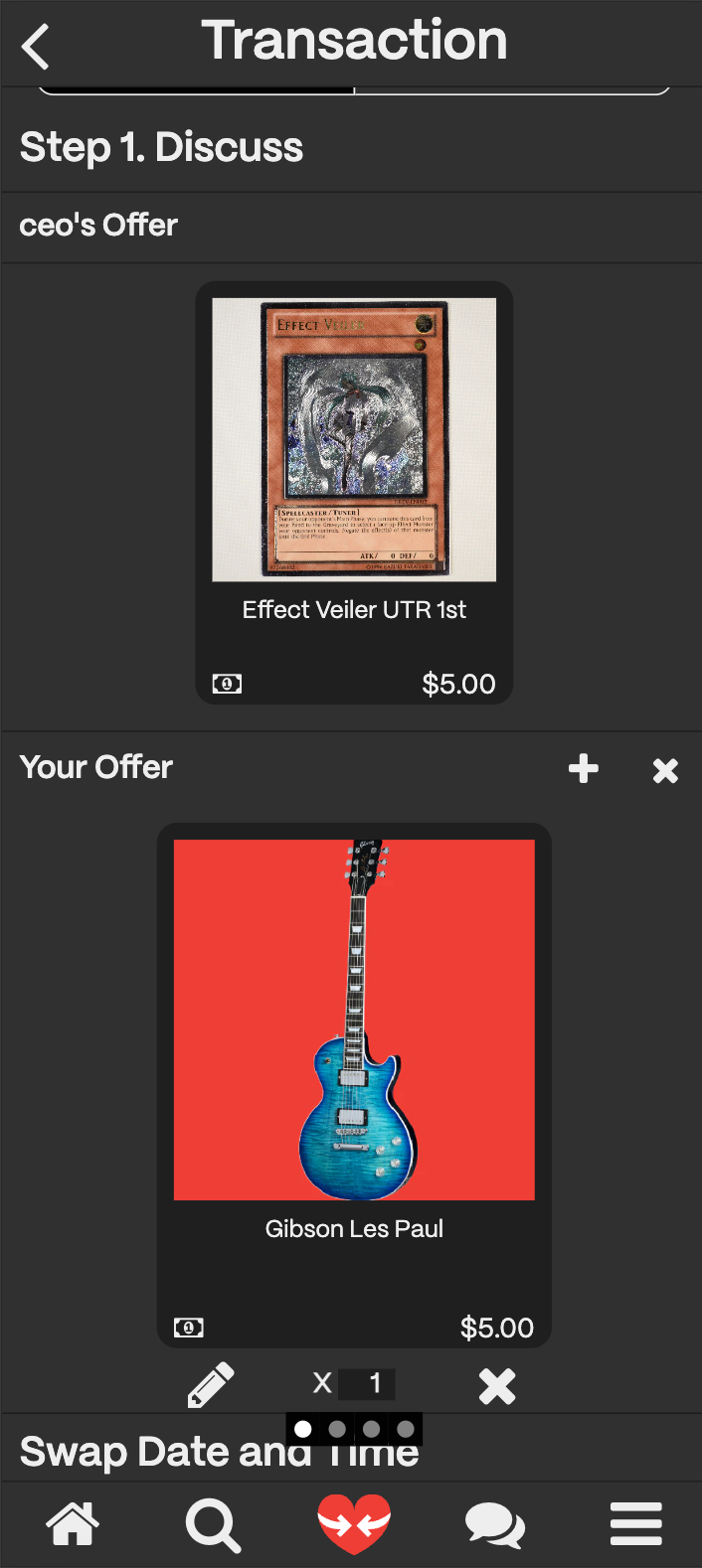
4. You should add your offer to the transaction. This can be a swap or money. A Swap is a one-to-one exchange of items.
5. Once you have added your offer, it should show up on the offer section.
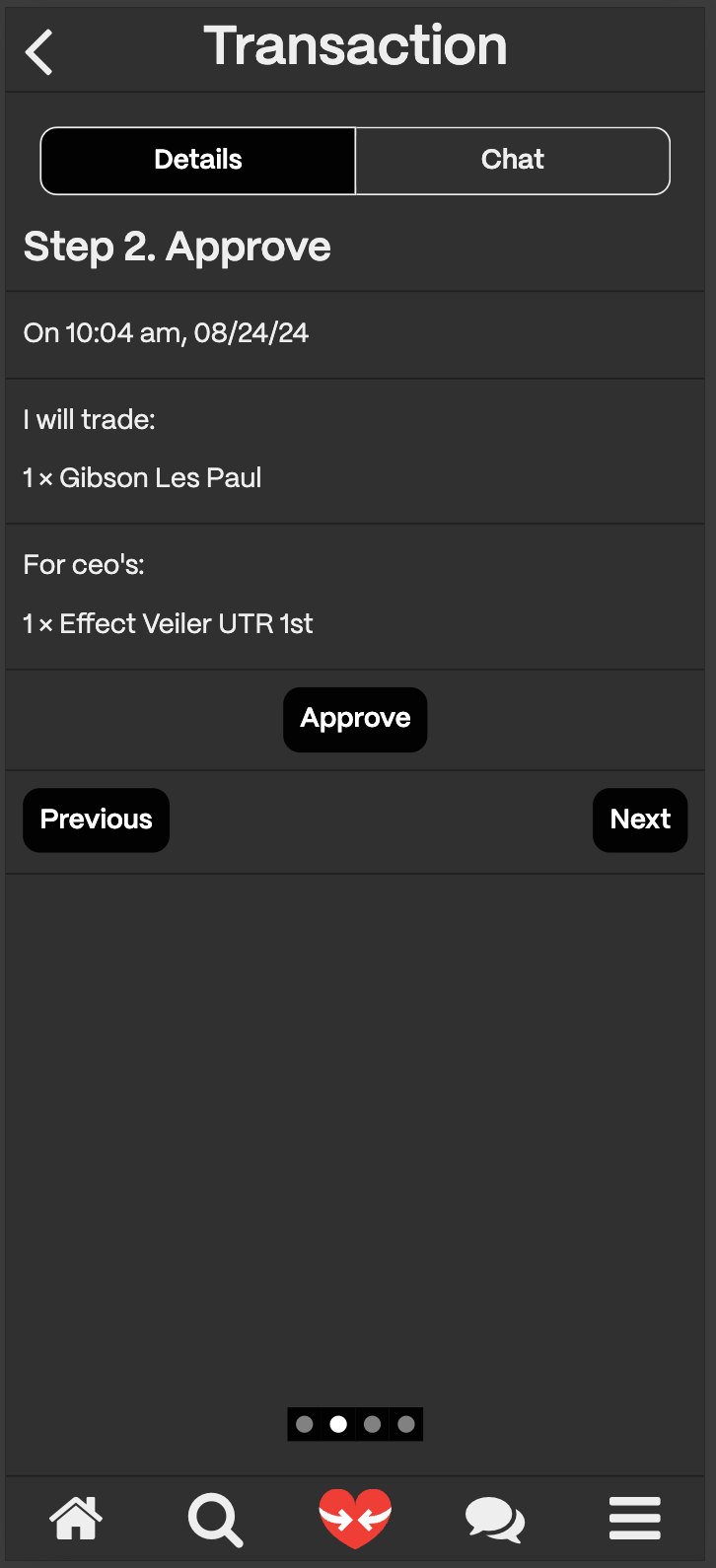
5. Click on the **"Approve"** button to send the offer to the seller.
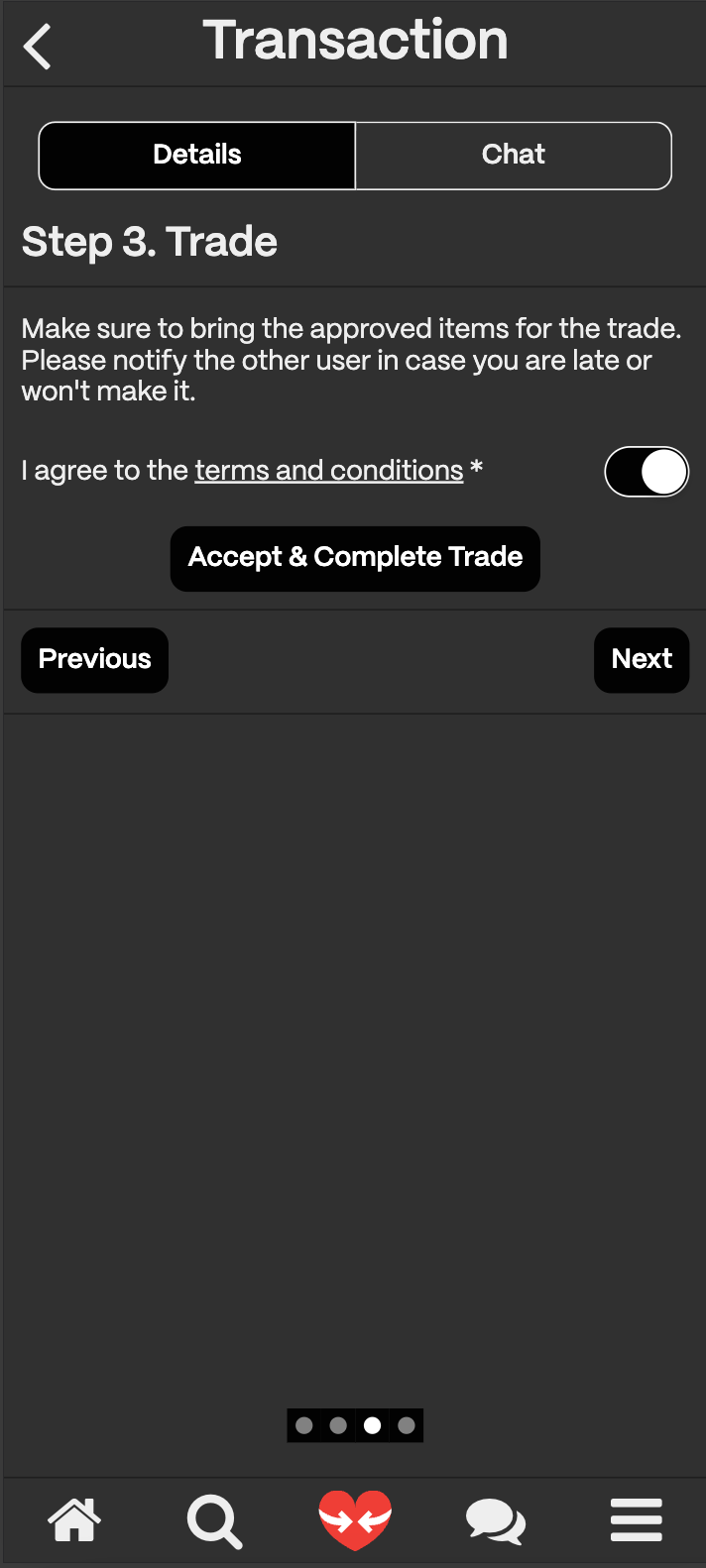
6. The seller will then have the option to **"Approve"** or **"Reject"** the offer. If they approve the offer, the transaction will be completed once you click the **Trade** button.
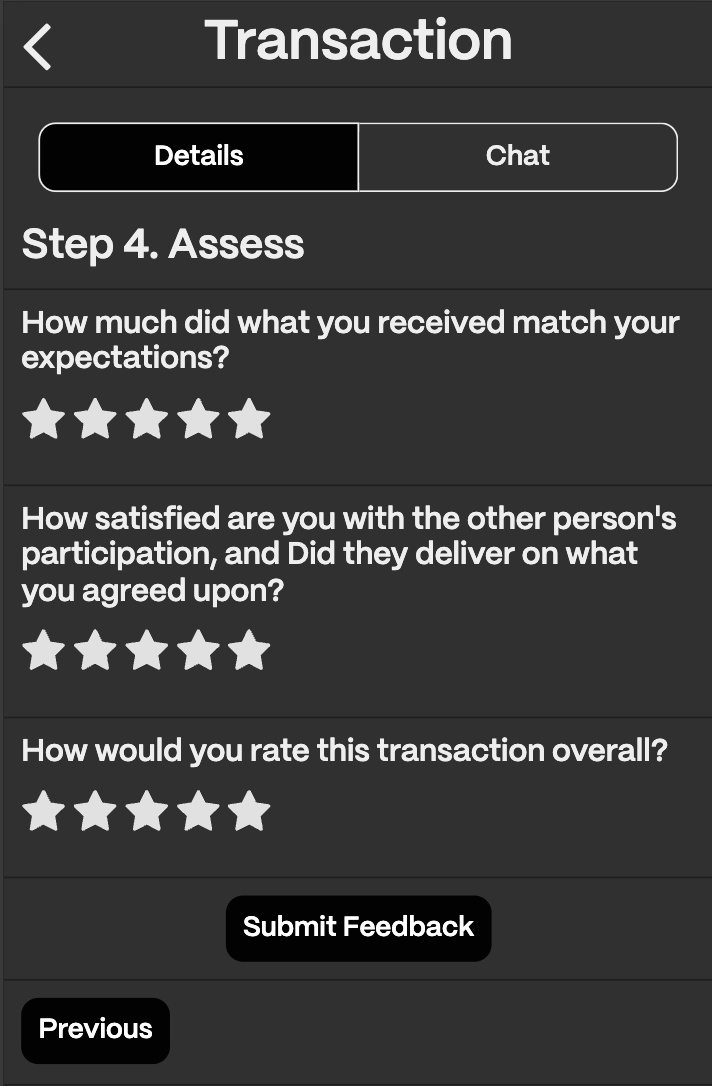
7. You are asked to complete a short survey about the transaction. You have the option to chat with the other party.
The listing will then be added to your [**inventory**](../swapnice-features/inventory).
### How Do I Find My Transactions?
On Swapnice you can find your transactions by:
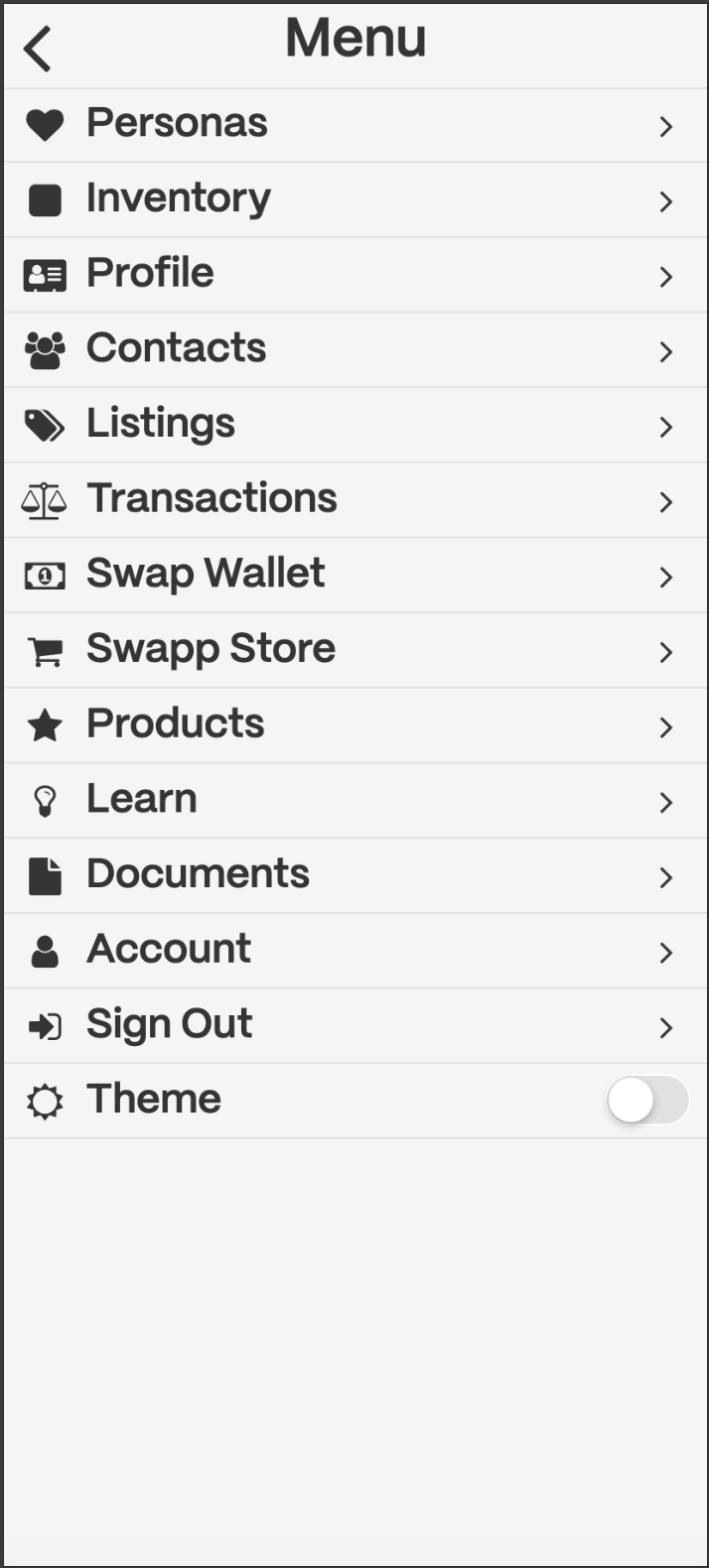
1. Navigating to the Transactions page. Click on the menu page and select Transactions.
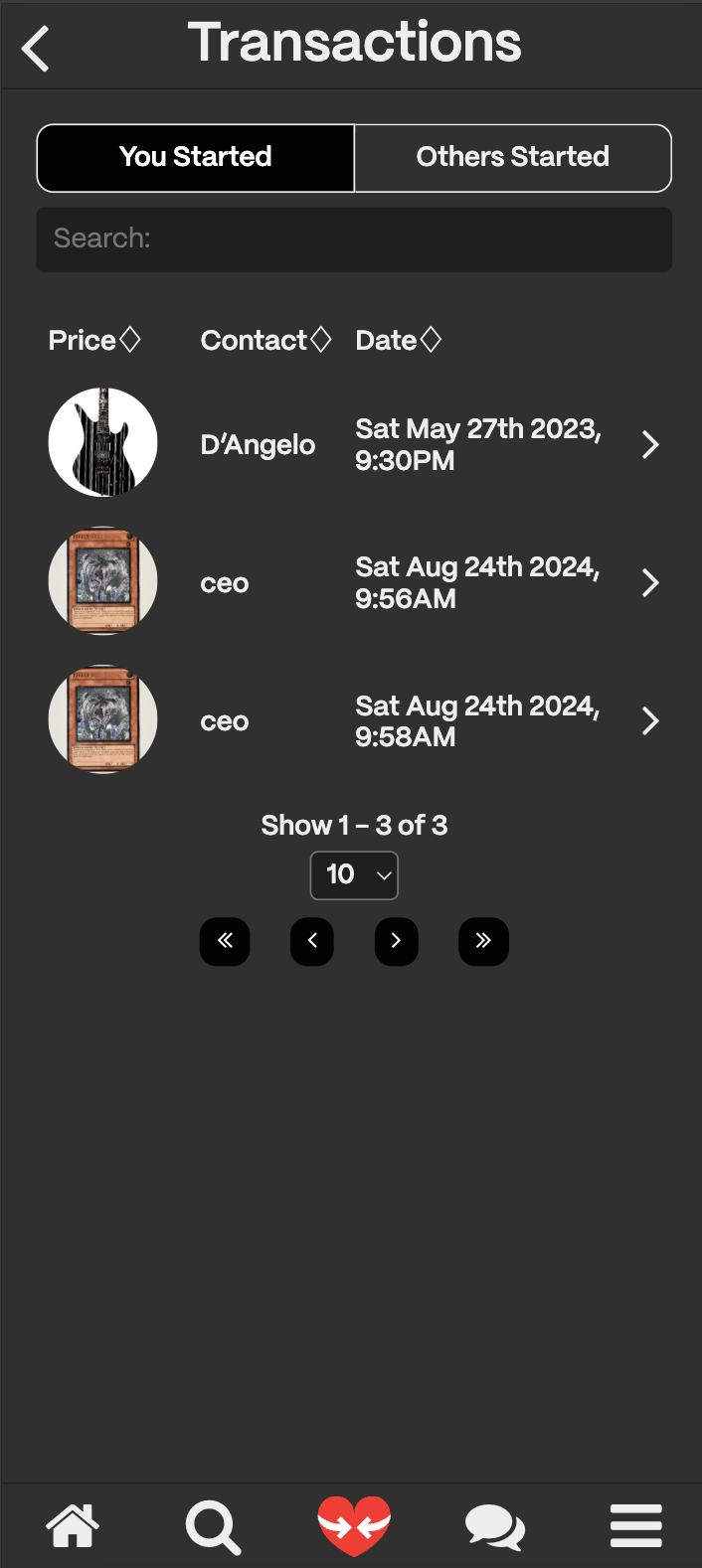
2. On the transactions page, you can see two tabs: **"You Started"** and **"Others Startes"**. You can view all the transactions you have started and all the transactions others have started with you.
{/* ### Transactions will look something like this:
* UID
* Sender (Person who made the listing originally)
* SenderOffering (hasOne Collection)(Seller of the original Listing)
* Sender-ID x POSIX
* Receiver
* ReceiverOffering (hasOne Collection)(Person who wants the listing)
* To-ID x POSIX
* POSIX
* Type - (swap/buy/gift)
* Meeting Place (hasOne place)
* Status (Transaction Status Codes:)
* 0. initiated: by buyer
* 1. withdrawn: by buyer (withdrawn before seller viewed)
* 2. viewed: by seller (seller viewed the offer)
* 3. negotiating: by seller (seller viewed offer and counter offered or responded)
* 4. canceled: by buyer (buyer no longer interested after seller view)
* 5. rejected: by seller (seller not interested in business with buyer)
* 6. seller approved: approved by seller
* 7. buyer approved: approved by buyer
* 8. approved: both parties agreed on a deal
* 9. seller no show: party didn't follow up
* 10. buyer no show: party didn't follow up
* 11. seller bad item: seller didn't procure the correct item
* 12. buyer bad item: buyer didn't procure correct item
* 13. fulfilled: both parties received what they wanted */}
### Transactions: Items and Listings
The terms Items and Listings are synonymous, transactions store one or more ID's of listings which are the items that were swapped. The listings detail all of the information for the items when they were, added to the trade, what they’re worth (if possible), the status of this item being a “real” item or not (one that is clearly fake, or one with an item code, etc.)