> ## Documentation Index
> Fetch the complete documentation index at: https://swapnice.mintlify.site/llms.txt
> Use this file to discover all available pages before exploring further.
# Swap Wallet
09/02/24
### What is a Swap Wallet?
A Swap Wallet is a digital wallet that allows users to store, send, and receive money. It is designed to help users manage their monetary transactions on the Swapnice platform. The Swap Wallet is integrated with the Swapnice platform, allowing users to make payments, receive funds, and track their transactions. It is designed to be secure, easy to use, and convenient for users.
### How do I set up a Swap Wallet?
To set up a Swap Wallet:
1. Sign-up for a Swapnice account.
2. Go to the **Swap Wallet** section in your menu bar.
3. You will be prompted to create a new wallet.
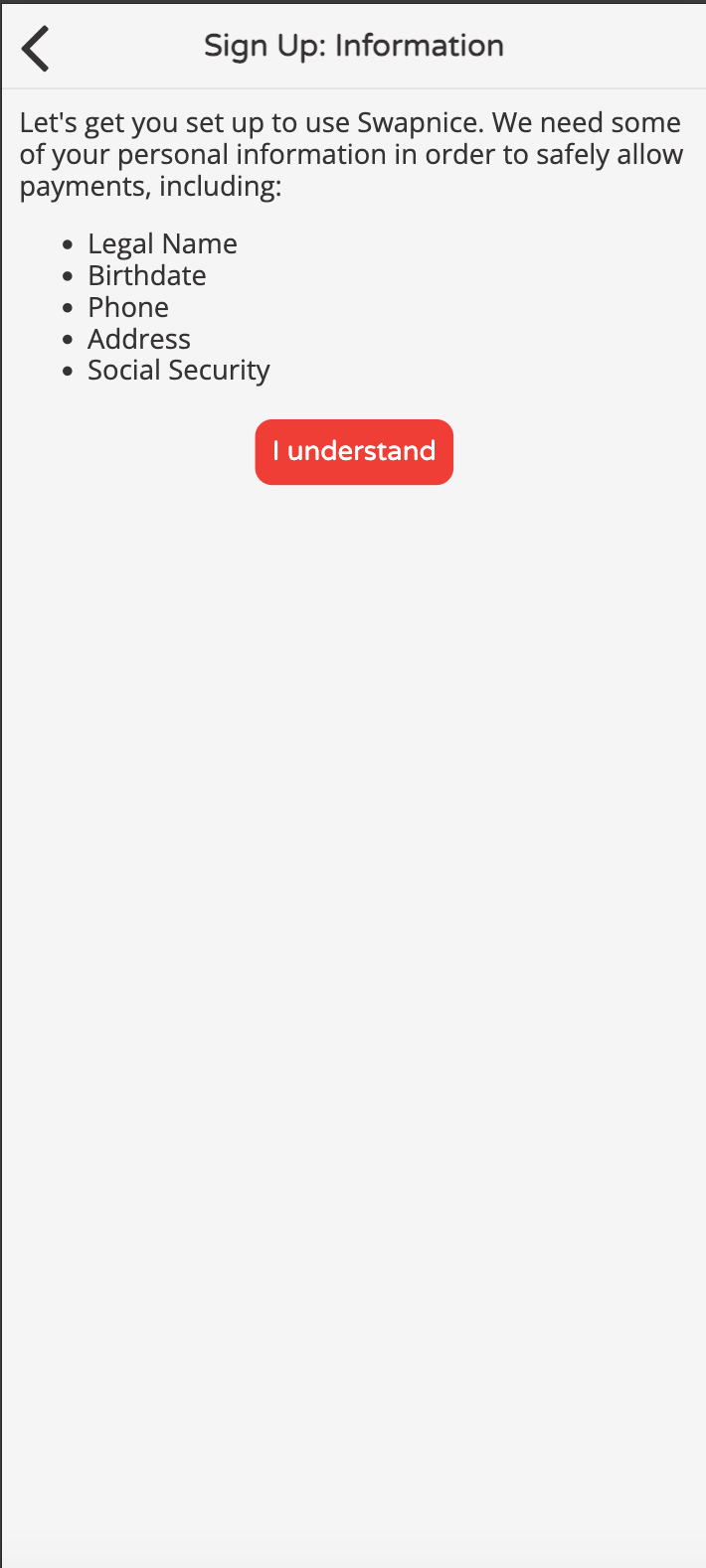
4. You will be asked to complete a multi-part form to sign up for the wallet.
* Legal First Name
* Legal Last Name
* Date of Birth
* Phone Number
* Address
5. Once you have completed the form, your wallet will be created.
### How do I add funds to my Swap Wallet?
To add funds to your Swap Wallet:
1. Go to the **Swap Wallet** section in your menu bar.
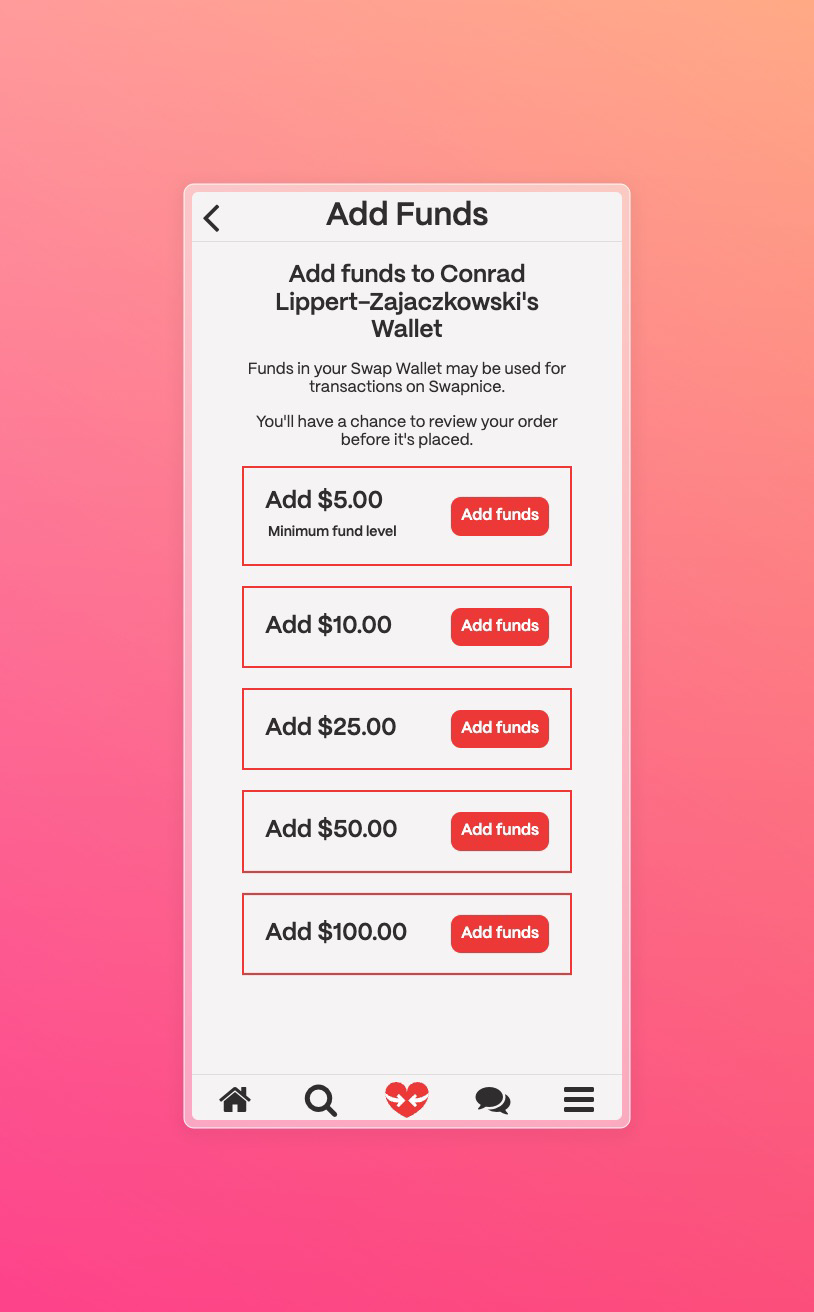
2. Click on the **Add Funds** button.
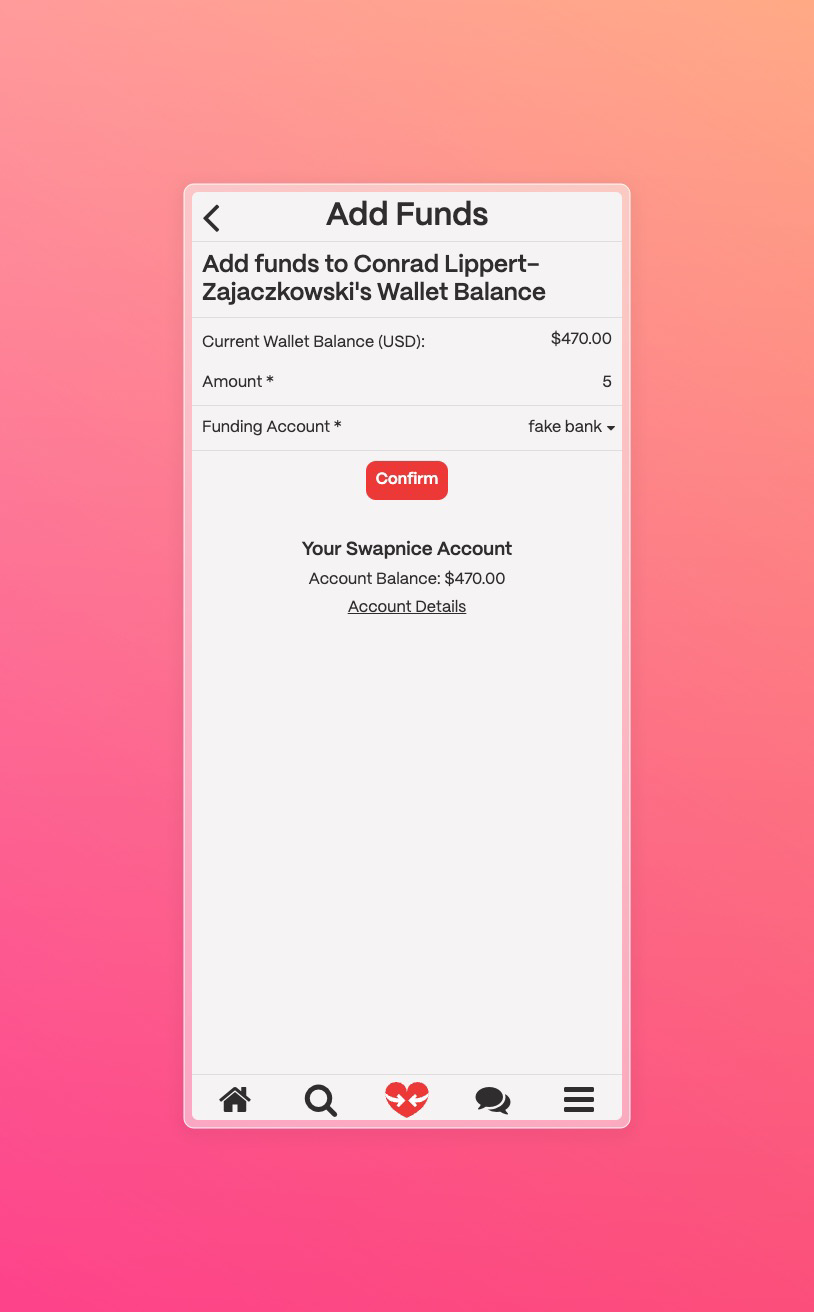
3. You will be prompted to confirm the amount you would like to add to your wallet.
4. Once you have confirmed the amount, the funds will be added to your wallet.
### How do I withraw funds from my Swap Wallet?
To withdraw funds from your Swap Wallet:
1. Go to the **Swap Wallet** section in your menu bar.
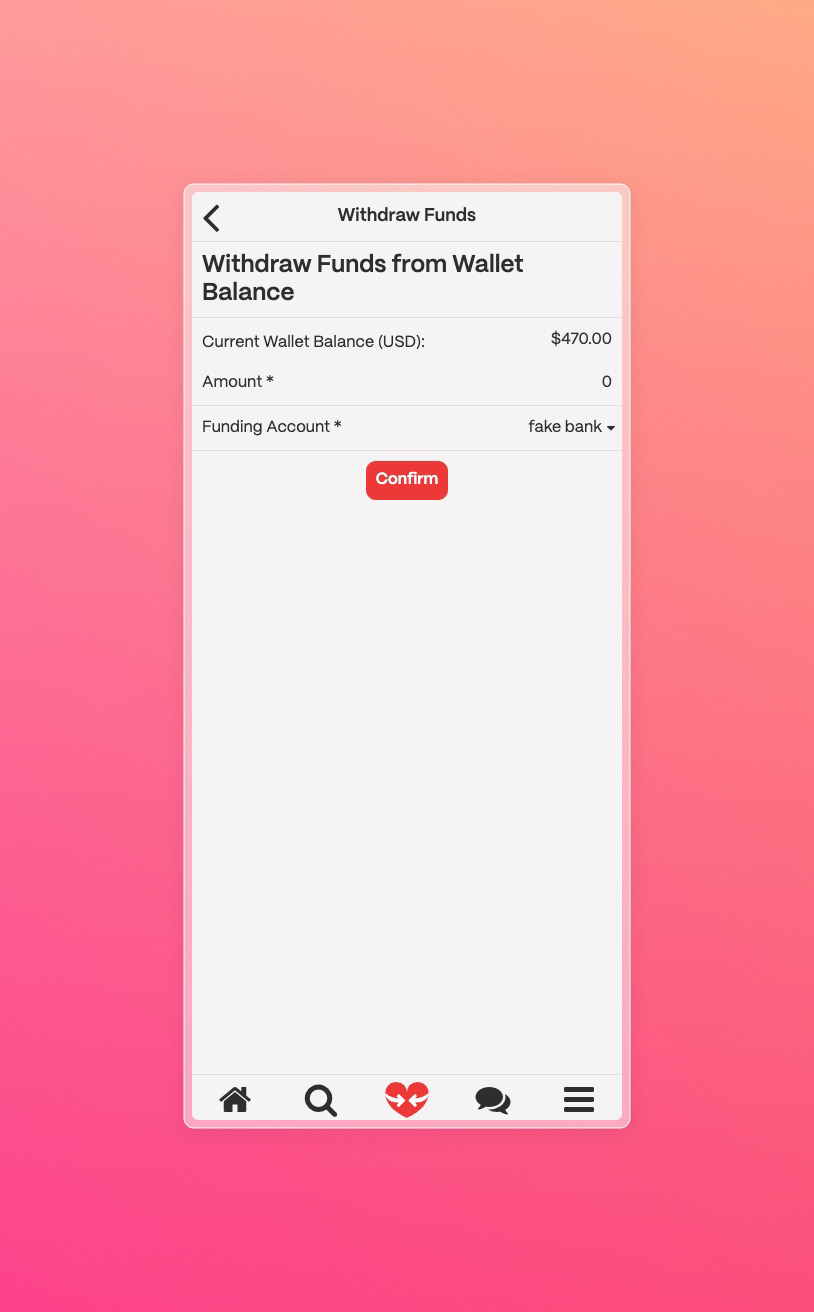
2. Click on the **Withdraw Funds** button.
3. After confirming, the funds will be withdrawn from your wallet.
### How do I view my transaction history?
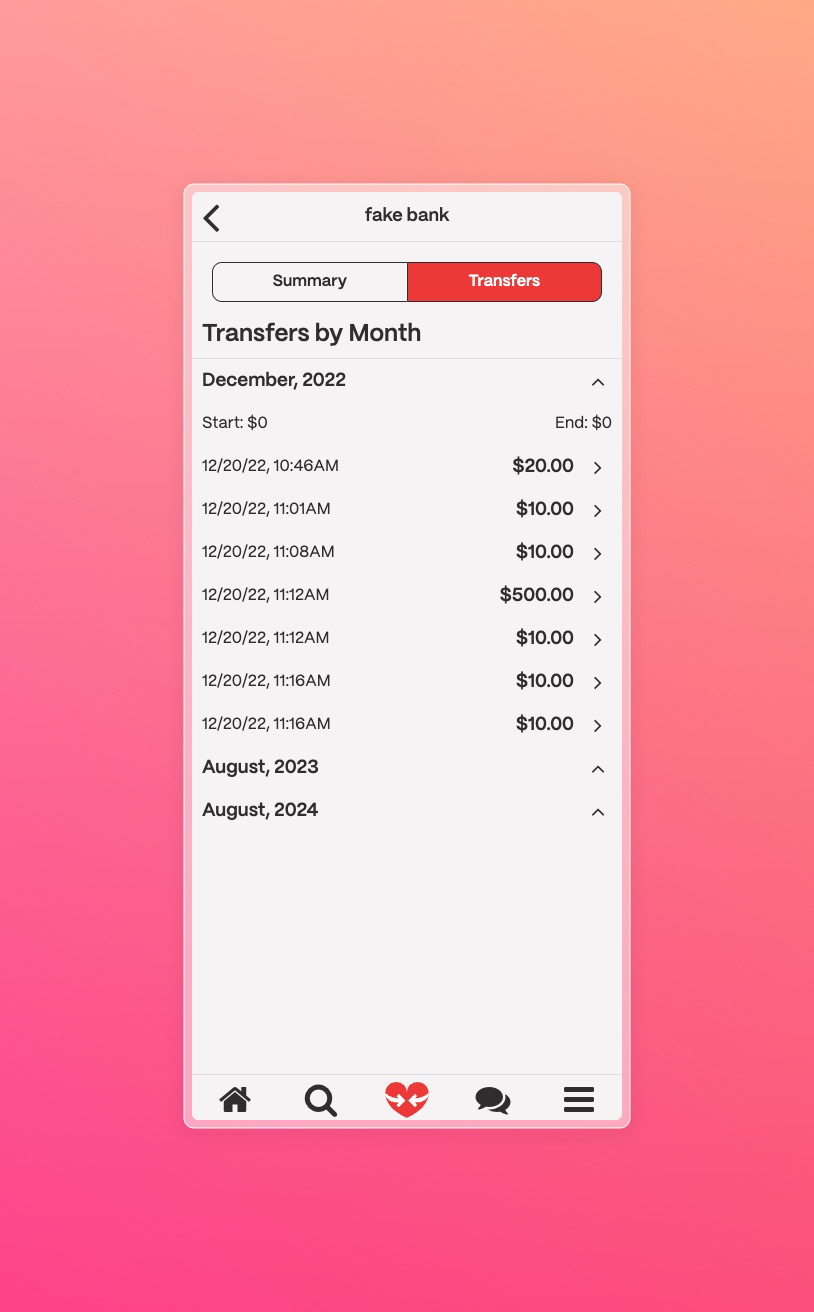
The **Transaction History** page allows you to view all the transactions you have made with your Swap Wallet. You can view the date, time, amount, and description of each transaction. This page is designed to help you keep track of your transactions and manage your funds effectively.
### How do I view/change my primary payment method?
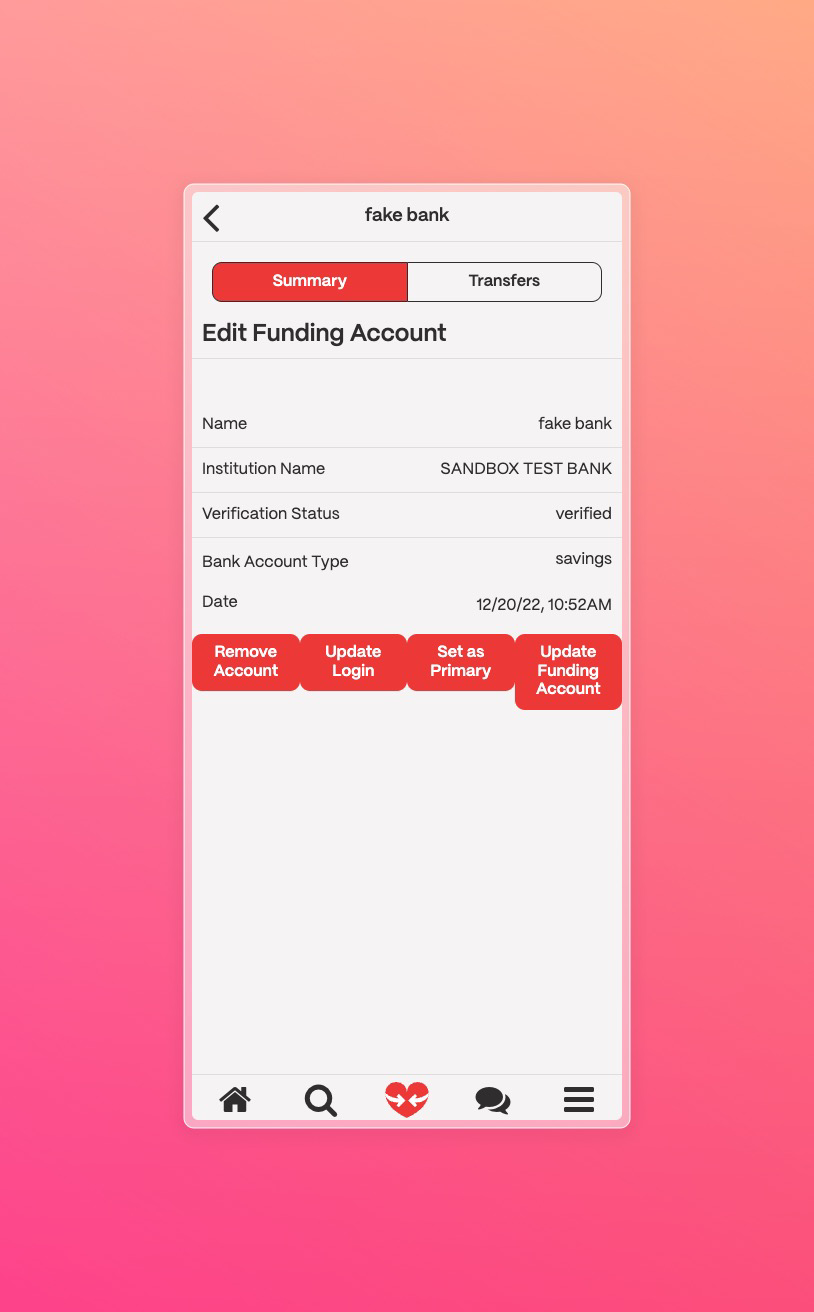
The **Edit Funding Account** page allows you to view and change your primary payment method. You can add a new payment method, edit an existing payment method, or remove a payment method. This page is designed to help you manage your payment methods and ensure that your funds are secure.
### How do I view my wallet balance?
You can view your account balance by:-
1. Using the **Transfers** page to look at your monthly transactions
2. The **Add Funds** page to see your current balance
3. The **Withdraw Funds** page to see your current balance